Automated cataloging for all auction software, tailored to Auction Flex 360
Cataloging lots shouldn't be so time consuming.
Save your and your employees' valuable time! Catalog Caddy automatically renames your auction photos for bulk upload, uses advanced image detection technology to generate titles and descriptions for your lots, and hands you a paste-ready sheet that works with any auction software, with dialed-in support for Auction Flex and HiBid's bulk upload format out of the box. Our systems cut down cataloging time for your estate sale or catalog auction from days to hours.
Free to download. Windows may show an "unrecognized publisher" warning on first run, that's expected for a new app, click "More info" then "Run anyway" to continue. A license key (sent by email after purchase) is needed to use it. Mac and Linux users, use the browser version above.
1
Upload your photos
Drop in a batch of lot photos, then click the first and last photo of each lot to group it.
2
Automatically catalog each lot
HiBid optimized titles and descriptions so that your lots aren't missed by bidders searching for your items.
3
Export and paste
Renamed images ready for bulk upload, plus rows you can paste straight into your import sheet. Read below how the bulk image upload process works with Auction Flex.
Pricing
Two purchases get you started: yearly access unlocks the app (try it free for 3 days, no card required), and a credit pack covers the lots you catalog. One credit per lot, whichever action touches it first, image detection or export.
Your license key arrives by email within a few minutes of purchase. See the User Instructions for how license keys and credits work.
Selecting photos for a lot
Click the first photo of a lot, then hover toward the last, every photo in between highlights so you can see exactly what you're about to group before you click. Missed one? Click just that single photo in the pool, then hit "Pull from Pool" on the lot card to add it in without redoing the range.
1st click selects the start of the lot. Hovering toward the last photo previews the whole range live, and a 2nd click there completes it.
More than titles and descriptions
Real tools built from real auction-house feedback, not just a thin wrapper around image detection.
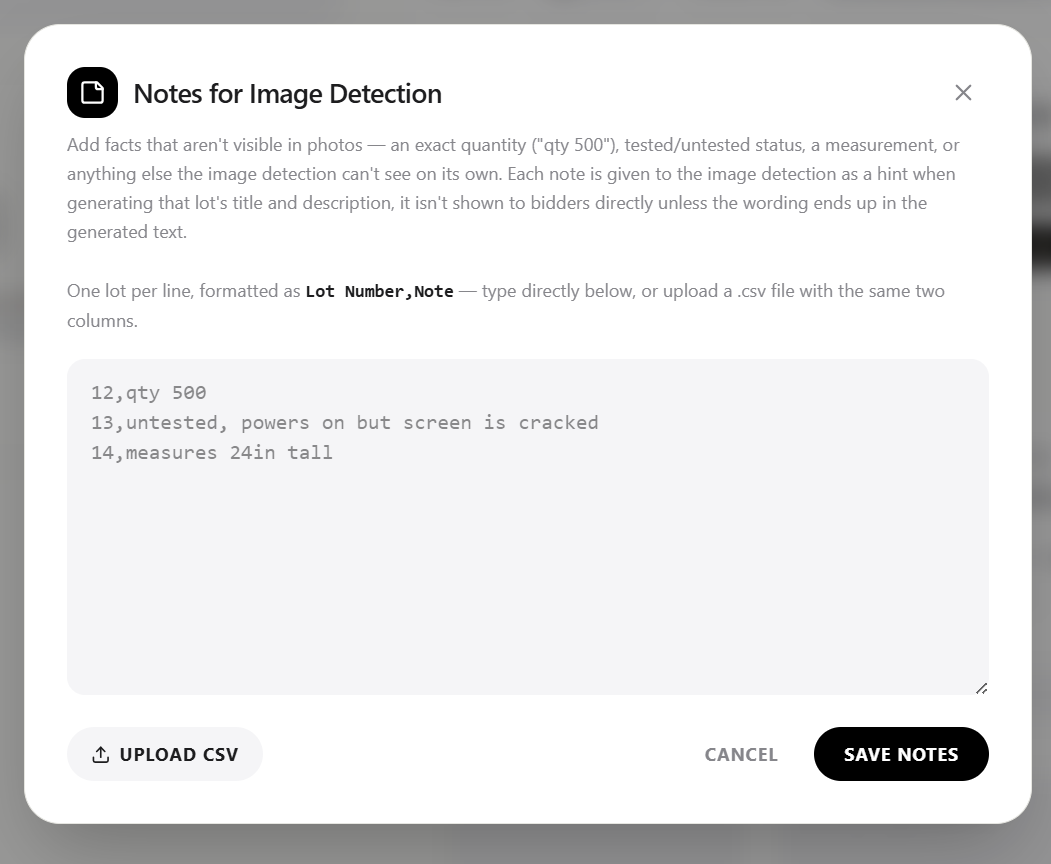
Notes for image detection
Give it facts a photo can't show, an exact quantity, tested/untested, a measurement, before it writes a word. Type them in or upload a .csv.
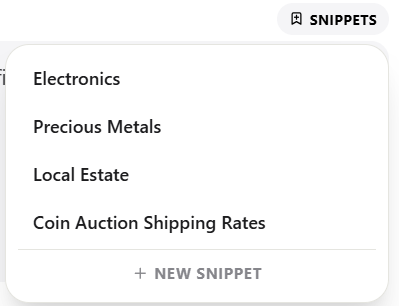
Saved snippets
Insert a standard shipping note or a recurring consignor disclaimer with one click, everywhere you edit a description.
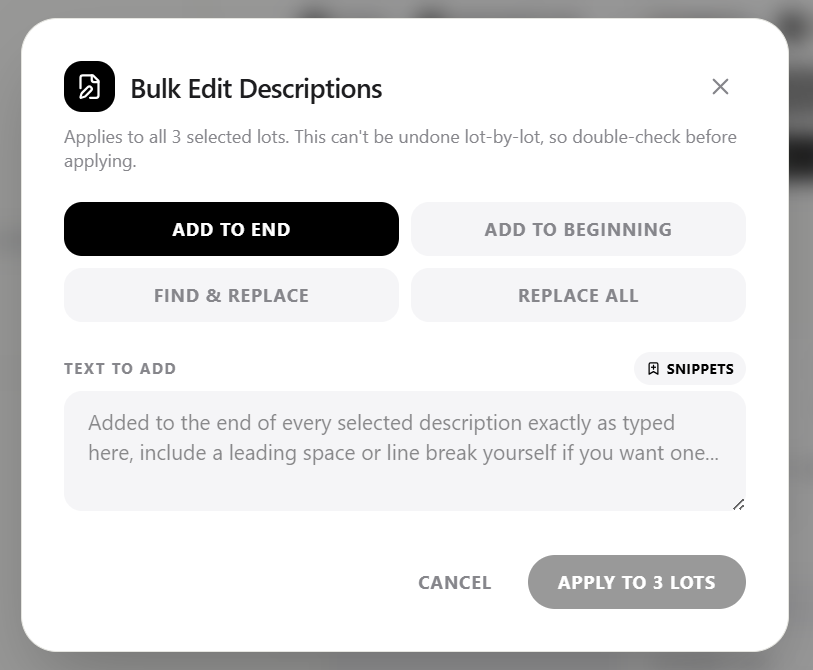
Bulk edit descriptions
Add-to-end, find & replace, or outright replace across your whole batch in one pass.
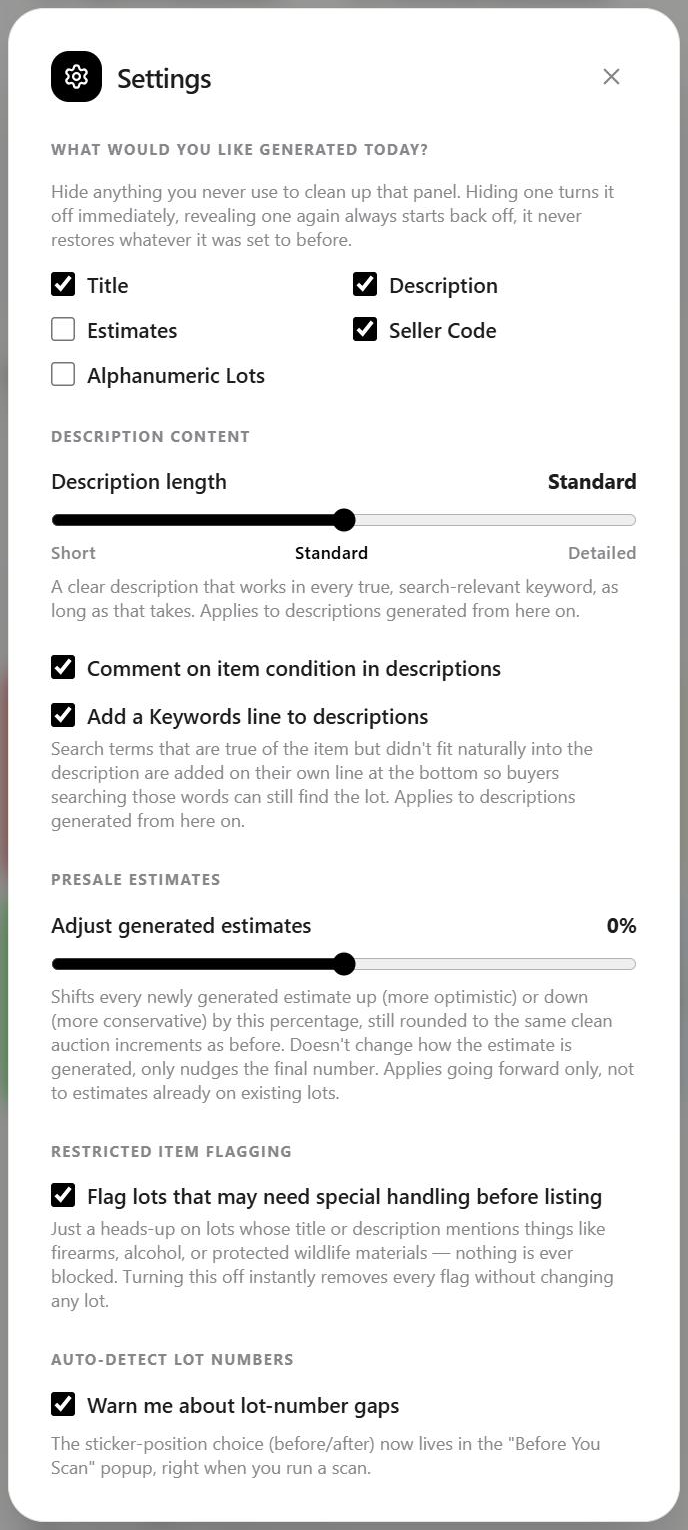
Personalized settings for your use case
Show only the fields you actually use, control what image detection comments on, and get a heads-up on lots that may need special handling before listing.
Tips for the best image detection results
✓
Photograph measurements
Include a close-up shot with a ruler or caliper reading in the photo pool for a lot. It helps the image detection technology describe sizes and dimensions accurately.
✓
Capture as much detail as possible
Close-ups of maker's marks, hallmarks, signatures, and other unique identifiers give the image detection technology what it needs to write a more specific, more accurate description.
✓
Clean up before you export
Don't want that measurement close-up in your final listing photos? After running image detection, click the X on any photo inside a lot to send it back to the pool, it won't affect the title or description already generated.
Pro tip: Photograph the lot number sticker as the last photo in that lot's set. It's an easy way to keep your photos in order and confirm the right lot number when you group the range.
Built for how auction houses actually work
Matches your existing workflow
Output is formatted for Auction Flex's bulk image upload and HiBid's import sheet, so there's no reformatting.
Fast on big batches
Processes multiple lots in parallel instead of one at a time, so a large batch doesn't mean a long wait.
Careful with accuracy
Only reports details it can actually see in the photos. Makers' marks and models are never guessed.
Straightforward pricing
Pay only for the lots you catalog, with no bloated software subscription to justify.
How the Auction Flex 360 bulk upload works
Catalog Caddy names each photo using your lot number and that photo's position within the lot. The third photo of lot 12 becomes 12-3.jpg, the first photo of lot 45 becomes 45-1.jpg, and so on.
1
Export the renamed batch
In two clicks, Catalog Caddy renames every photo with its lot-and-position name already applied. This saves the renamed images to your computer for upload into your auction software. No tediously sorting each image into a separate folder or renaming each photo by hand.
2
Open Auction Flex's bulk image upload
These renamed photos integrate into Auction Flex's bulk image upload perfectly. On AF360, go to Pre Auction > Lot Images and select "Select Lot Images." This may look slightly different depending on your version of Auction Flex.
3
Auction Flex matches photos to lots automatically
It reads the lot number in each filename and attaches every photo to the right lot on its own.
Auction Flex 360's own naming instructions (Pre Auction > Lot Images) match Catalog Caddy's output exactly, so there's nothing to reformat.
From titles and descriptions to Auction Flex
1
Run image detection on all your lots
Catalog Caddy generates a title and description for every lot in the batch.
2
Review what it generated
Results vary with the quality and detail in your photos, what information exists online about the item, and how you like to stylize your own titles and descriptions. Edit anything before moving on.
3
Copy for Spreadsheet
Click "Copy for Spreadsheet," then paste into the Google Sheet or Excel template below. Save or download that sheet as a CSV.
4
Import into Auction Flex
In Auction Flex, go to Pre Auction > Lots > Import Lots, click Auto-Map, then upload the CSV file.
We founded a small, local auction house in Wind Gap, Pennsylvania, and while using Auction Flex 360, we realized how many inefficiencies the program had and how many newer technologies simply weren't being used by auctioneers.
With a background in software engineering, I built an in-house tool to fix that. It drastically cut our cataloging time, saving us hours a day, adding up to many days over the course of a month. That let us serve our consignors better and made our turnaround lightning fast. Meanwhile, local competitors were struggling to catalog 300 to 1,000 lots a month with a full staff, and we were exceeding their output with drastically lower overhead.
I'm convinced this kind of technology is the future of the industry. After a lot of tweaking and refining, we're finally releasing our secret weapon to the public. It's optimized for Auction Flex 360, but works with any cataloging software. We're always refining it as new technology develops and as customers give us feedback.
Give our free 3-day trial a try.
Ryan, Founder of Catalog Caddy
Frequently asked questions
Yes. Yearly access unlocks the app itself, a credit pack is what actually lets you catalog lots, one credit per lot. New yearly subscriptions include a 3-day free trial (no card required) plus 25 bonus credits, so you can try the whole workflow before committing to anything.
Cataloging pauses for any lots you haven't reached yet, but nothing you've already done is lost. Your batch stays exactly where it is, buy more credits and pick up right where you left off.
Unused credit packs can be refunded within 14 days of purchase, just reach out. Credits you've already used aren't refundable. Yearly access can be cancelled anytime to stop future renewals, you keep access through the period you already paid for.
No. Credit packs are one-time purchases, and yearly access can be cancelled anytime, effective at the end of your current paid period.
No. Photos are sent for processing only when you run image detection, used transiently to generate a title and description, and not retained afterward. Exporting a zip file happens entirely on your own computer and is never uploaded anywhere.
It only describes what it can actually see in your photos, and won't guess at things like maker's marks or model numbers that aren't clearly visible. Worth a quick review before importing, especially for higher-value lots. See Photography Tips for getting the best results.
Yes. Renamed photos and the exported spreadsheet both match Auction Flex's bulk upload format and HiBid's import expectations exactly, no reformatting needed.
Save the confirmation email somewhere safe, there's no automated self-service way to look your key up again (this is intentional, it protects against someone else requesting your key using a public auction-house email address). Contact support and we'll sort it out manually.
Ready to try it?
Download Catalog Caddy, then pick a plan above to get your license key. On Mac or Linux, use it in your browser instead.